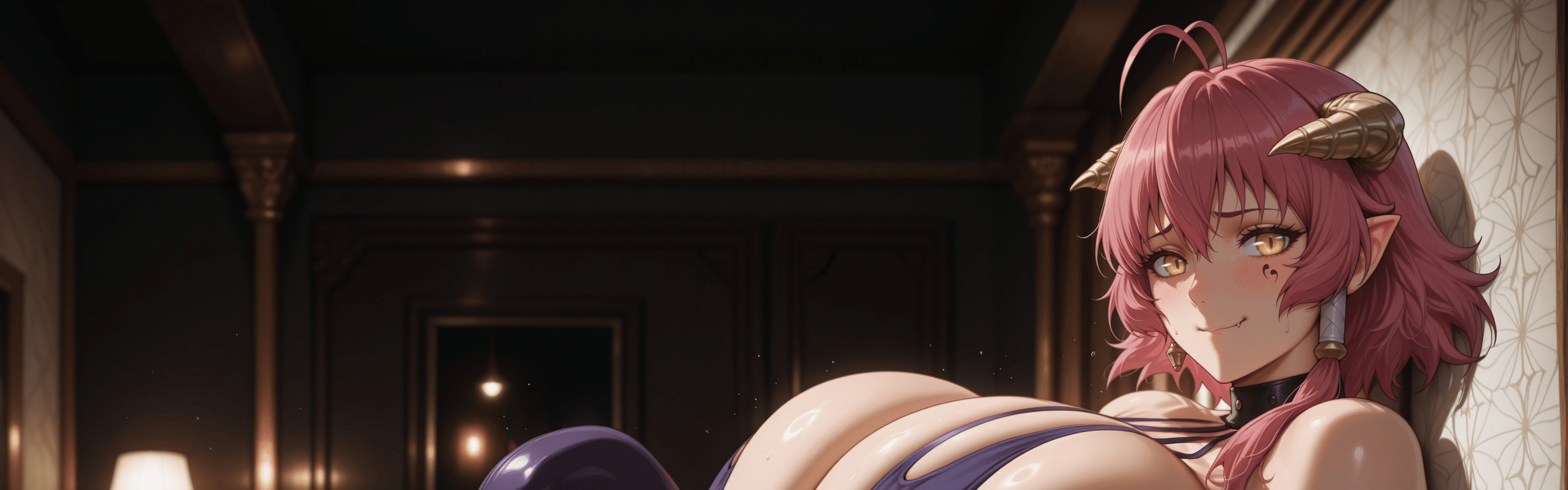
![[Unity Tool - VRChat] Facial Expression Creator – Create & Edit Facial Animations | 64 Gesture Combinations, BlendShape Browser, Expression Menu Controls & Non-Destructive Controller Editing [PC - Quest - iOS] | English, Español, 日本語, Deutsch, 한국어, 简体中文](https://jinxxy-c.jinxxy-cdn.com/cdn-cgi/image/format=auto,onerror=redirect/d6581584-c971-5e92-aa70-4ee05c64d770/3962566430259414273/1007870294175291392.png)
[Unity Tool - VRChat] Facial Expression Creator – Create & Edit Facial Animations | 64 Gesture Combinations, BlendShape Browser, Expression Menu Controls & Non-Destructive Controller Editing [PC - Quest - iOS] | English, Español, 日本語, Deutsch, 한국어, 简体中文
상품 설명
이 상품에는 AI로 생성된 콘텐츠가 포함되어 있습니다.
CHANGELOG
Version 04.07.01 — 13-08-2026
- Automatic detection and autofix for the Gesture controller were added
- A custom Gesture controller was added to prevent errors in the hand-locking function
- Errors were intentionally added to be fixed later
Version 04.06.12 — 11-08-2026
• Initial release of Facial Expression Creator.
Temporarily available at a special launch price. Once the promotion ends, it Will return to its regular price
_________________________________________________________________________________
Facial Expression Creator
Facial Expression Creator is a Unity tool made to simplify the creation and setup of facial expressions for VRChat avatars.
It lets you create Animation Clips from your avatar's BlendShapes, edit existing clips, configure expressions for both hand gestures, and add expressions controlled through the Expressions Menu.
The tool can automatically detect the face from the Face Mesh configured in the VRC Avatar Descriptor. You can also manually select a GameObject or Skinned Mesh Renderer if you want to work with a specific mesh.
Work modes:
- New Animation Clip
- Edit Clips
- Gesture Matrix
- Menu Gestures
Main Features
- Create Animation Clips from your avatar's BlendShapes
- Edit existing Animation Clips
- Detect and import expressions from an FX Controller
- Preview expressions directly on the avatar
- Browse BlendShapes using thumbnails
- Search, filter, and sort BlendShapes
- Search, filter, and sort BlendShapes
- Configure all 64 GestureLeft and GestureRight combinations
- Create expressions activated from the Expressions Menu
- Organize new submenus before generating them
- Add Hand Lock and Face Lock
- Detect some common Animation Clip issues and fix them with Auto Fix
- Generate a new FX Controller without modifying the original
Creating and Editing Animation Clips
Select the BlendShapes you want to modify, adjust their values, and check the result
directly on the avatar using Preview
Only the BlendShapes you mark for modification Will be saved to the new
Animation Clip, so you can test values without having to include them in the final
result
You can also load existing Animation Clips and edit them
Clips can be selected manually or detected from the avatar's FX Controller. The tool
can find the standard VRChat gestures as well as expressions used inside an existing
Gesture Matrix
When editing a clip, you can add or update BlendShapes without removing the rest
of the animation, or replace its contents depending on what you need
Visual BlendShape Browser
When an avatar has hundreds of BlendShapes, finding the one you need by name
alone can be inconvenient
Facial Expression Creator can generate a thumbnail for each BlendShape using the
Scene View, so you can quickly see which part of the face it affects
You can search by name, apply filters, and sort the results
Thumbnails can also show only the affected area or highlight the vertices modified
by each BlendShape
You can adjust their resolution and size, and generated thumbnails are cached so
they can be reused whenever possible
Gesture Matrix
The Gesture Matrix lets you configure all 64 possible combinations between
GestureLeft and GestureRight
Each hand uses the eight standard VRChat gesture values:
Default, Fist, Open Hand, Point, Victory, Rock 'n Roll, Gun, and Thumbs Up
You can assign a different Animation Clip to each combination or reuse the same
clip in multiple positions
If the avatar already has facial expressions configured, the tool can read its FX
Controller and try to automatically import the existing matrix
You can also adjust the transition time between expressions
Animation Clip Checks
A facial expression can remain partially active when two Animation Clips do not
control the same BlendShapes
The Gesture Matrix checks for this type of difference between the Default clip and
the other expressions
When it finds a problem, it shows a warning and provides an Auto Fix option that
adds the missing BlendShapes with a value of O
This helps prevent parts of a previous expression from staying active when
switching gestures
FX Controller Generation
Once the Gesture Matrix is ready, you can generate the system directly from the
tool
Facial Expression Creator creates a new FX Controller instead of modifying the
original
You can keep the avatar's existing facial layer and add the new Gesture Matrix, or
replace that layer inside the generated copy
The rest of the controller layers are preserved
Once generated, you can assign the new FX Controller to the avatar from the same
window
Expressions from the Expressions Menu
Not every expression has to depend on hand gestures
Menu Gestures lets you create facial expressions that are activated directly from the
VRChat Expressions Menu
For each expression, you can configure:
- Animation Clip
- Name
- Icon
- Save State
- Thumbnail
- Destination inside the Expressions Menu
The expressions use one shared Int parameter
When a menu expression is active, it takes control of the face. When disabled, the
avatar automatically returns to the expression that matches the current Gesture
Matrix combination
Expressions Menu Organization
You can choose an existing menu or prepare new submenus before generating the
system
The tool shows the controls that already exist, the ones you are preparing, and the
available space in each menu.
If a menu runs out of space, you can configure additional submenus without having
to create them manually first.
The new menus and controls are created when you generate the system
Hand Lock and Face Lock
Facial Expression Creator can also add two optional controls
Face Lock keeps the current Gesture Matrix expression active even while you
continue changing hand gestures
Expressions activated through the Expressions Menu Will continue to work normally
Hand Lock keeps the current hand pose while facial expressions continue changing
Each lock can have its own name, parameter, icon, Save State setting, and
destination inside the Expressions Menu
You can also create a dedicated submenu for both controls
Workflow
- Select your avatar or Face Mesh
- Create a new Animation Clip or load an existing one
- Adjust the BlendShapes and check the result with Preview
- Save the expression
- Configure the Gesture Matrix and/or Menu Gestures
- Review any warnings and available Auto Fix options
- Generate the FX Controller and required assets
- Assign the new FX to the avatar and test the result
What Can You Create?
- Facial expressions for the standard VRChat hand gestures
- Different expressions based on combinations of both hands
- Smiles, blinks, and other expressions activated from the menu
- Emotion sets for roleplay
- Alternate expressions for Photos or performances
- Independent locks for hand poses and facial expressions
- Expression collections organized across different submenus
Available Languages
Facial Expression Creator is available in
- English
- Español
- Deutsch
- EV-*OI
The default language the first time the tool is opened is English. You can change it
from the Dayzuke Tools preferences
Requirements
- Unity 2022.3.22f1 +
- VRChat SDK3 - Avatars installed in the project
- A Skinned Mesh Renderer with facial BlendShapes
For automatic face detection, the Avatar Descriptor must have a Face Mesh
configured under Lip Sync. If it does not, you can manually select the object or
renderer you want to use
The generated systems can be used on PC, Quest, and iOS avatars, as long as the
Animation Clips, shaders, and Other avatar assets are compatible with the target
platform
When editing existing Animation Clips, Expressions Menus, or Expression
Parameters, changes are made directly to the selected assets. It is recommended to
keep a backup of your project before making major changes
_____________________________________________________________________________
Want to Request a New Feature?
If you have a suggestion, find an issue, or want to request a new feature, you can
contact me here:
X (Twitter)
https://x.com/Dayzuke_Azmodeo
https://www.instagram.com/dayzukeazmodeo/
Discord
dayzukeazmodeo
Discor server
On the server, you can find early and free versions of my tools, see what I am currently working on, and send suggestions directly.
https://discord.gg/4TBmzCzvqW
______________________________________________________________________________________
DRM Notice
Free Version
This is the free trial version of Facial Expression Creator
The trial lasts for 7 days starting from the first activation of the tool. Once the trial period ends, the tool Will be locked and the Full Version Will be required to continue using it
The tool does not collect personal information or user data
The trial system only uses a timer to limit the duration of the free version
Full Version
The Full Version does not include the DRM system used in the free version