
Garden Popcorn Wagon (VRChat Avatar Gimmick)
상품 설명
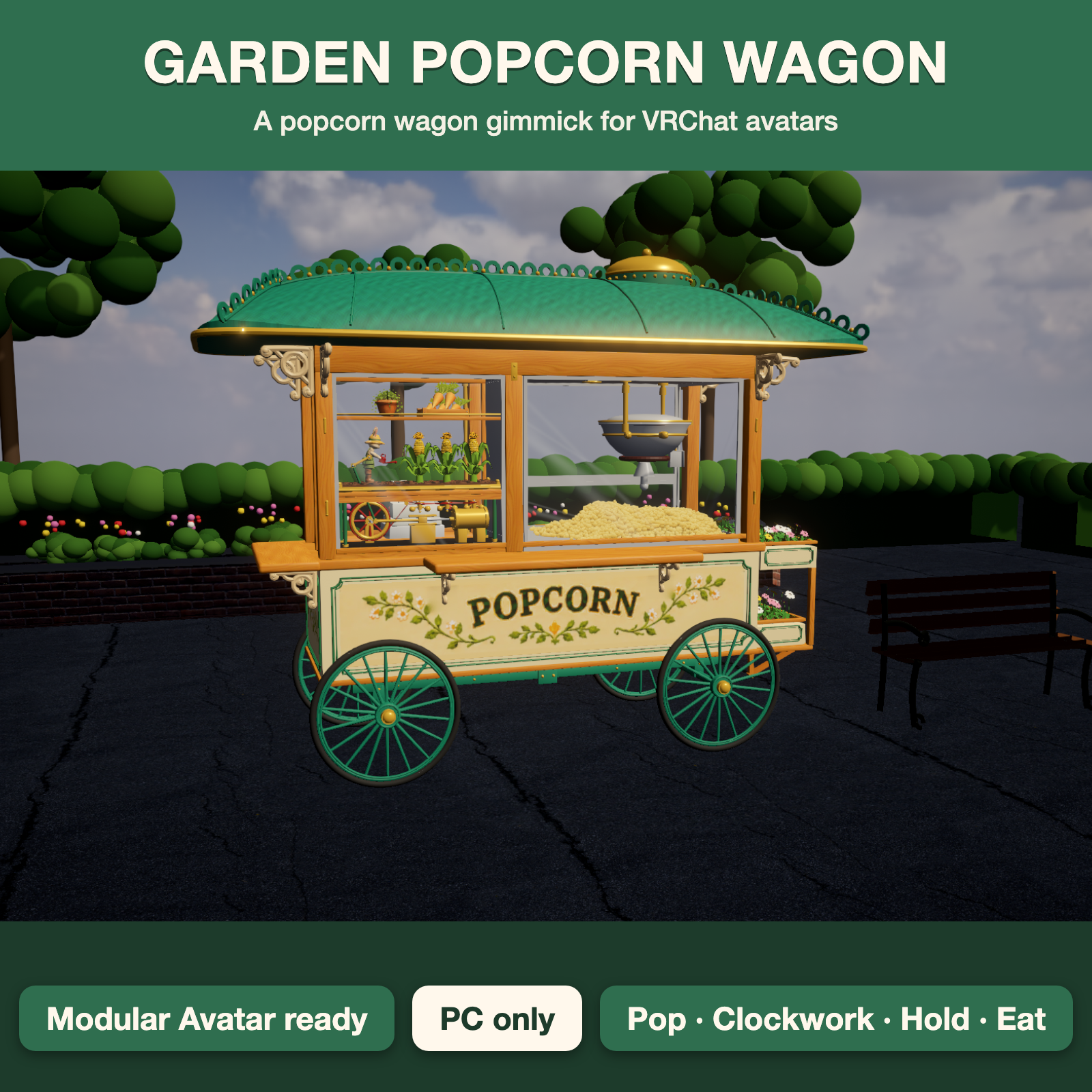
Bring out the garden popcorn wagon and make some popcorn!
You can bring out the wagon from the Expression menu.
Since it's an avatar gimmick, you can use it in any world.
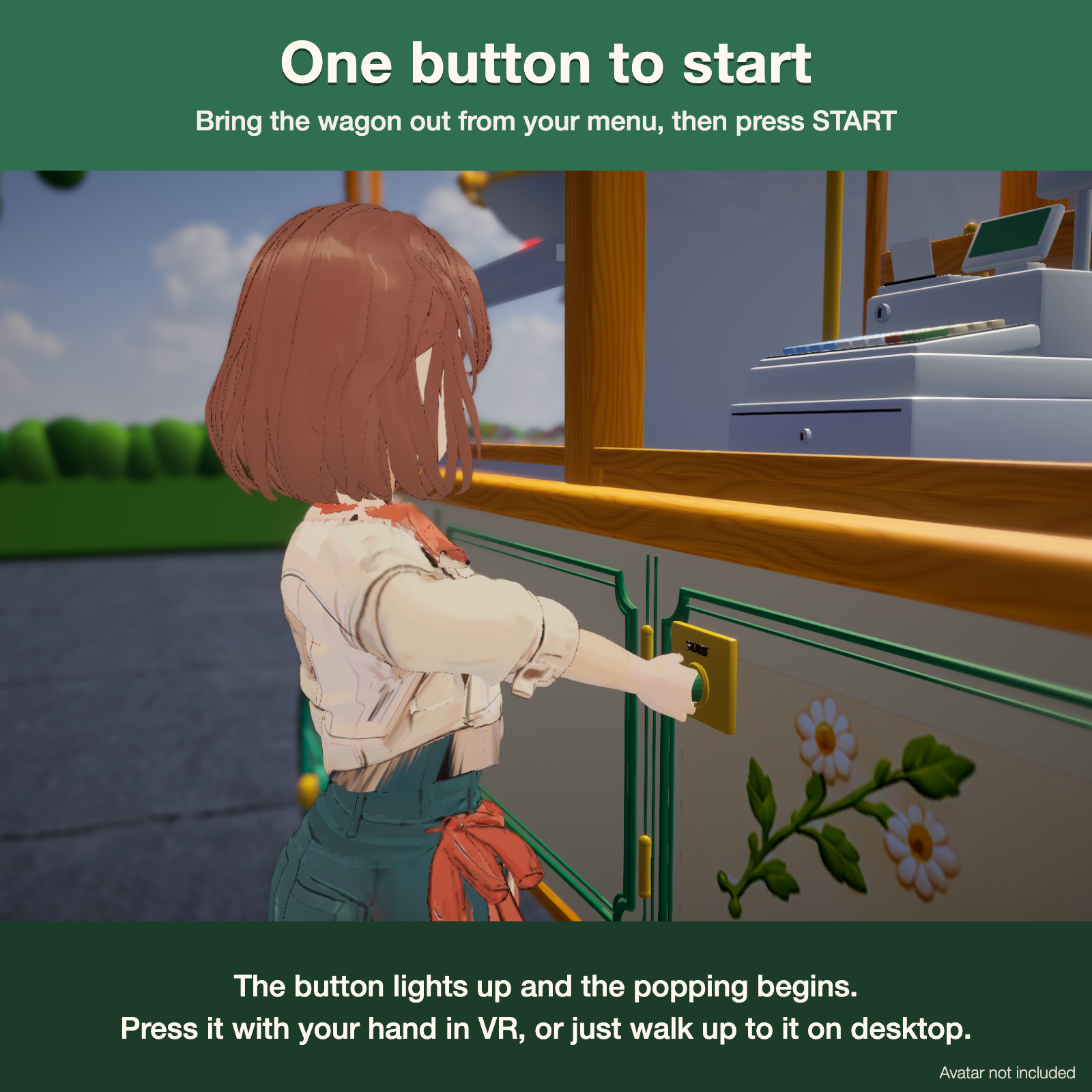
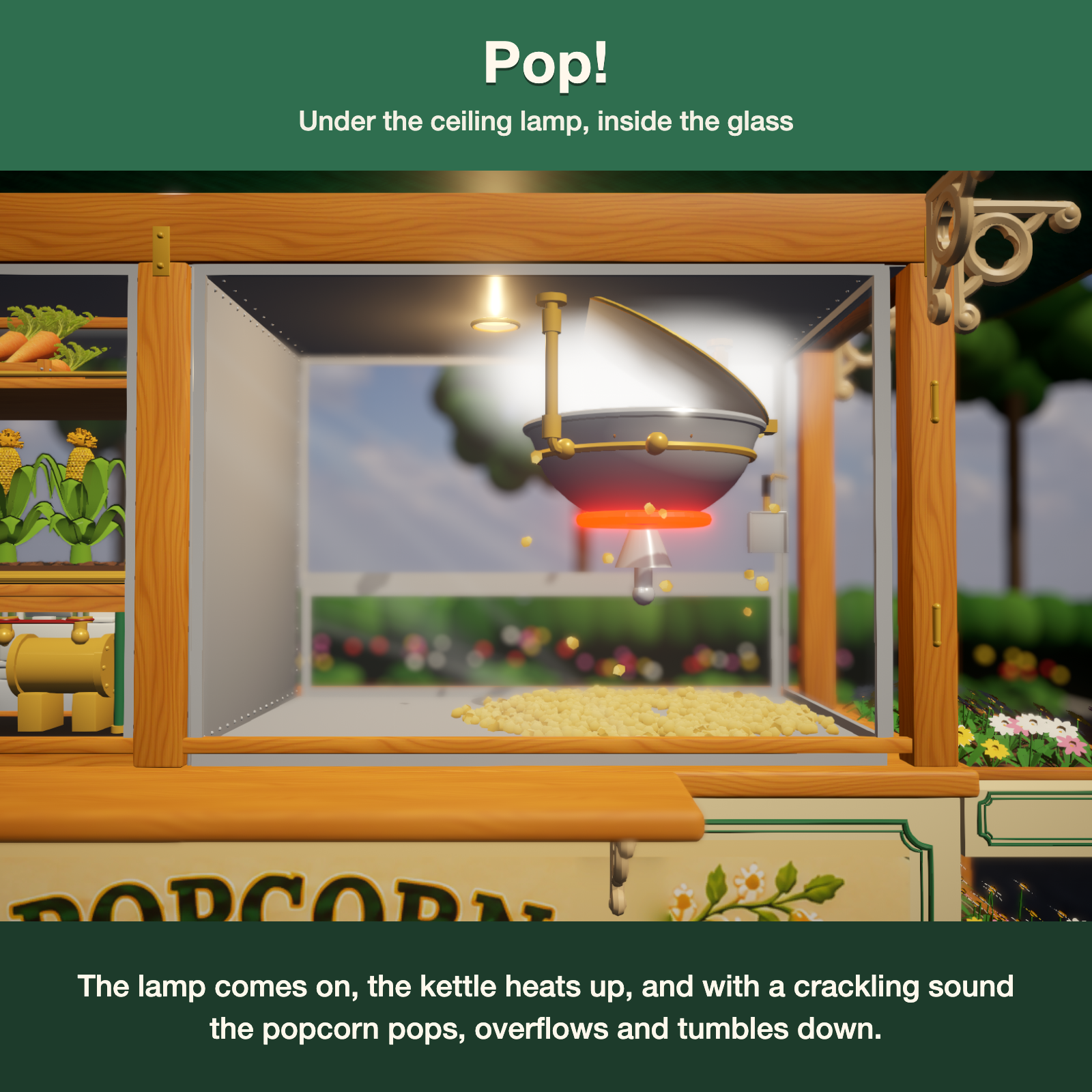
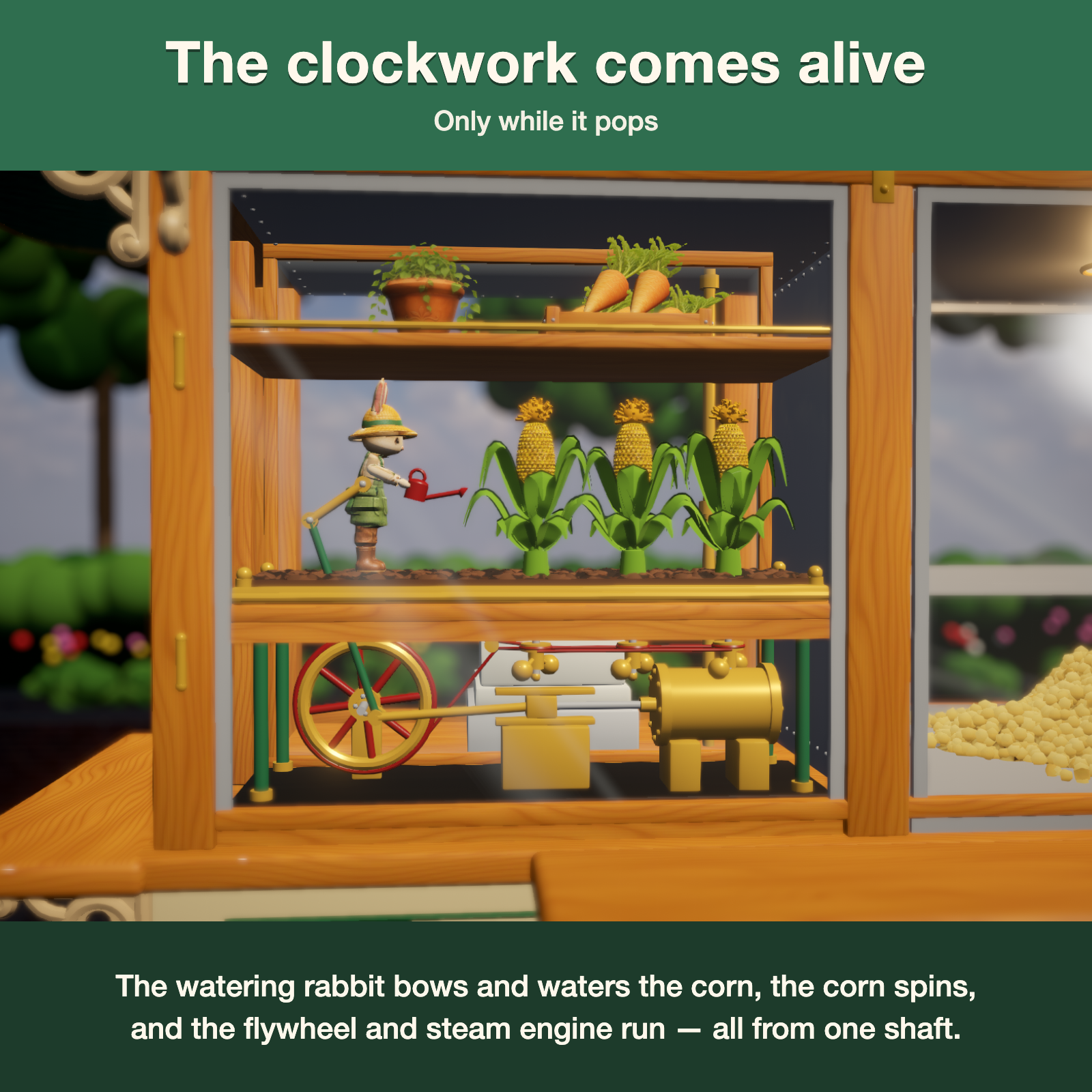
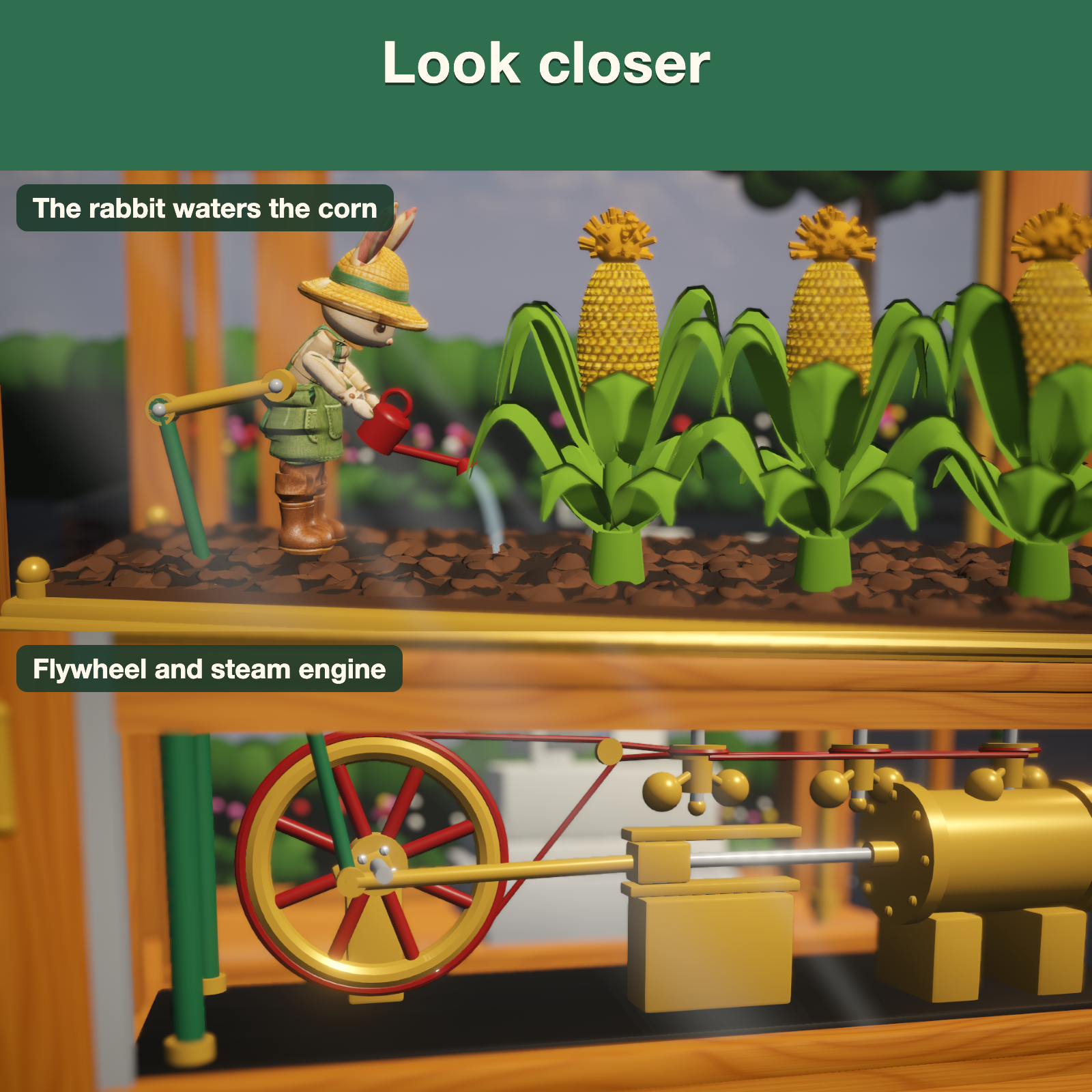
Press START: the ceiling lamp comes on, the kettle heats up, and with a crackling sound the popcorn pops, spills out and gradually piles up in the glass. Next door, the clockwork comes alive: a little rabbit bows and waters the corn while the flywheel and the steam engine run.
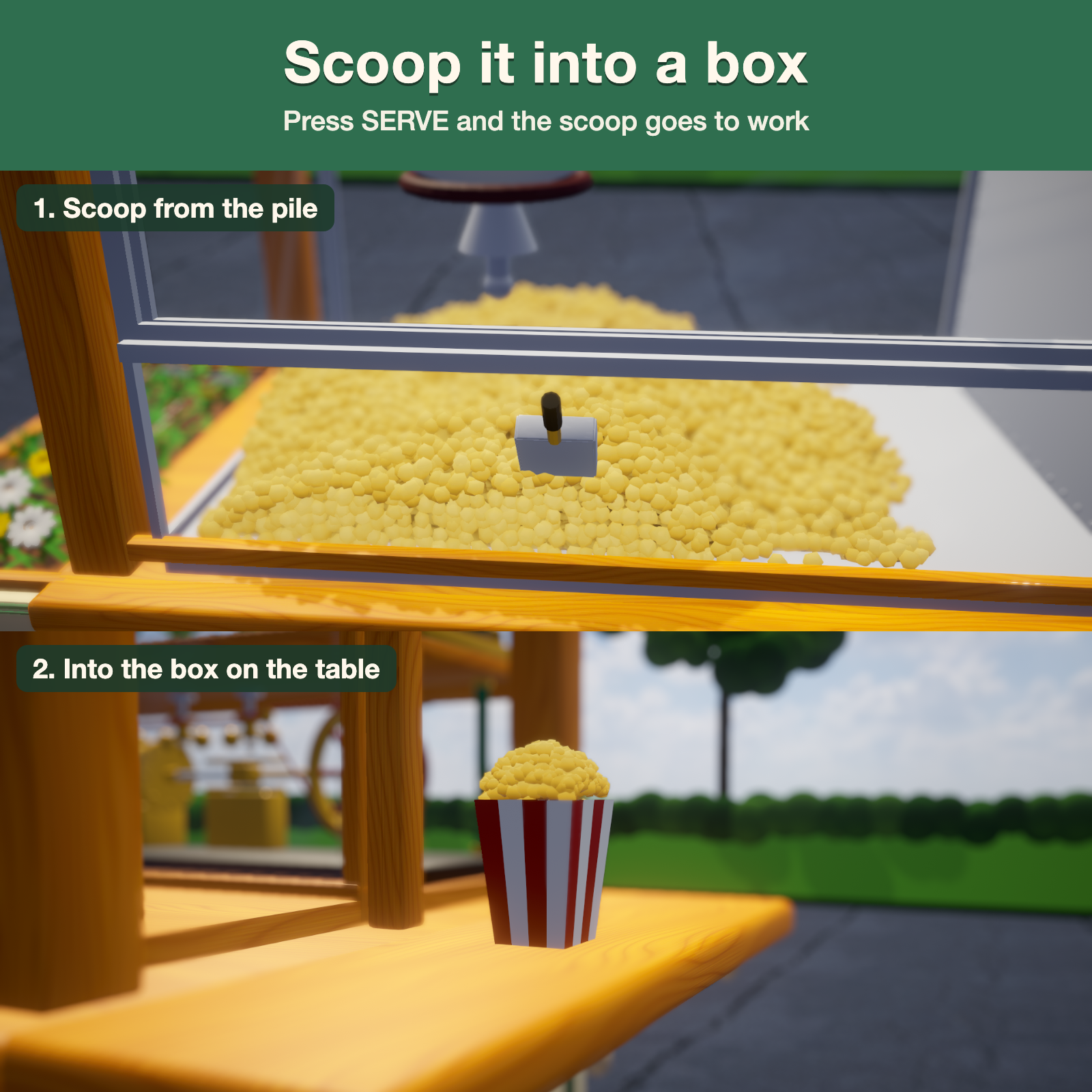
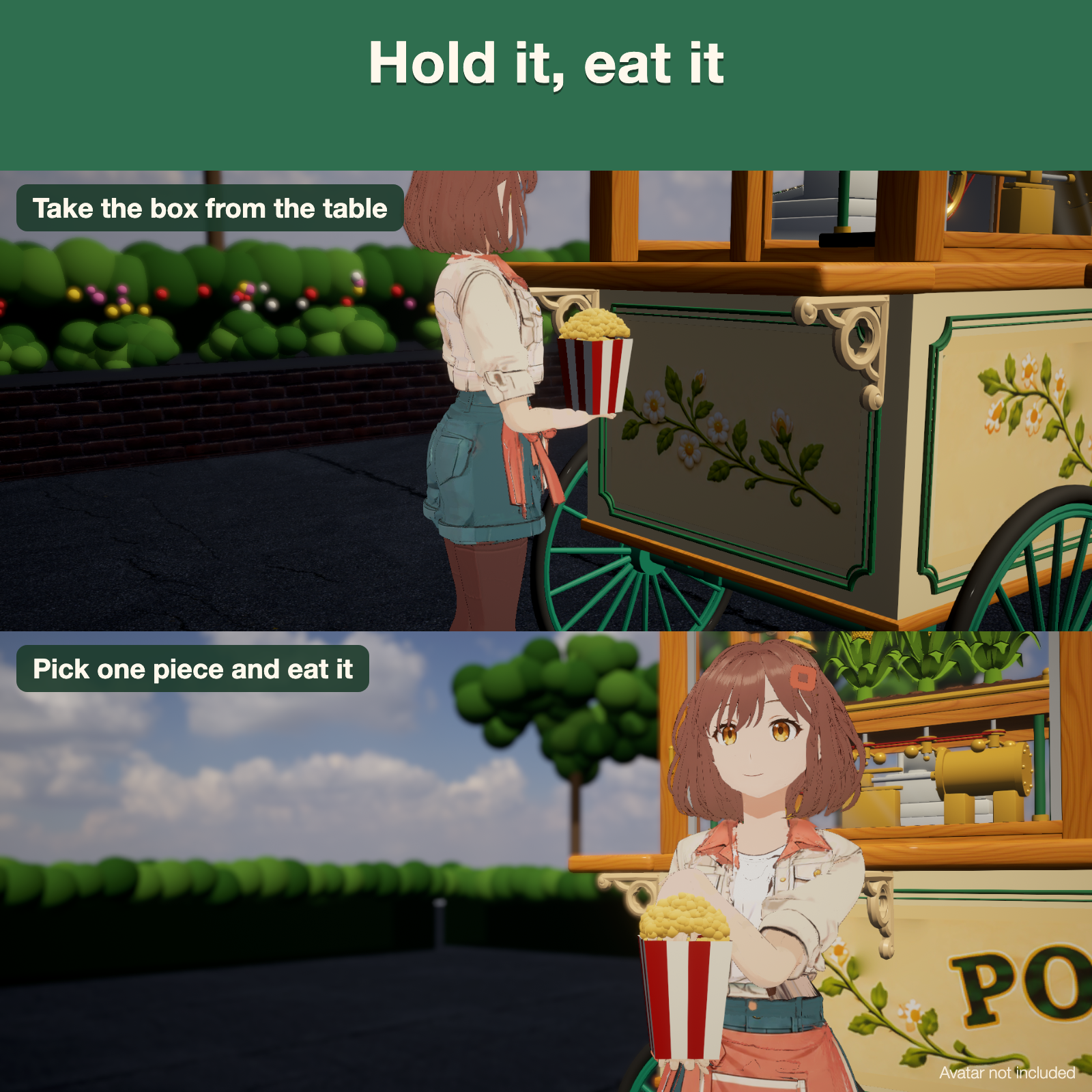
You can scoop the popcorn into a box, take it with you, and eat it.
What it does
- Pop — the ceiling lamp lights up → heat → popping sound → popcorn overflows and rolls down the glass
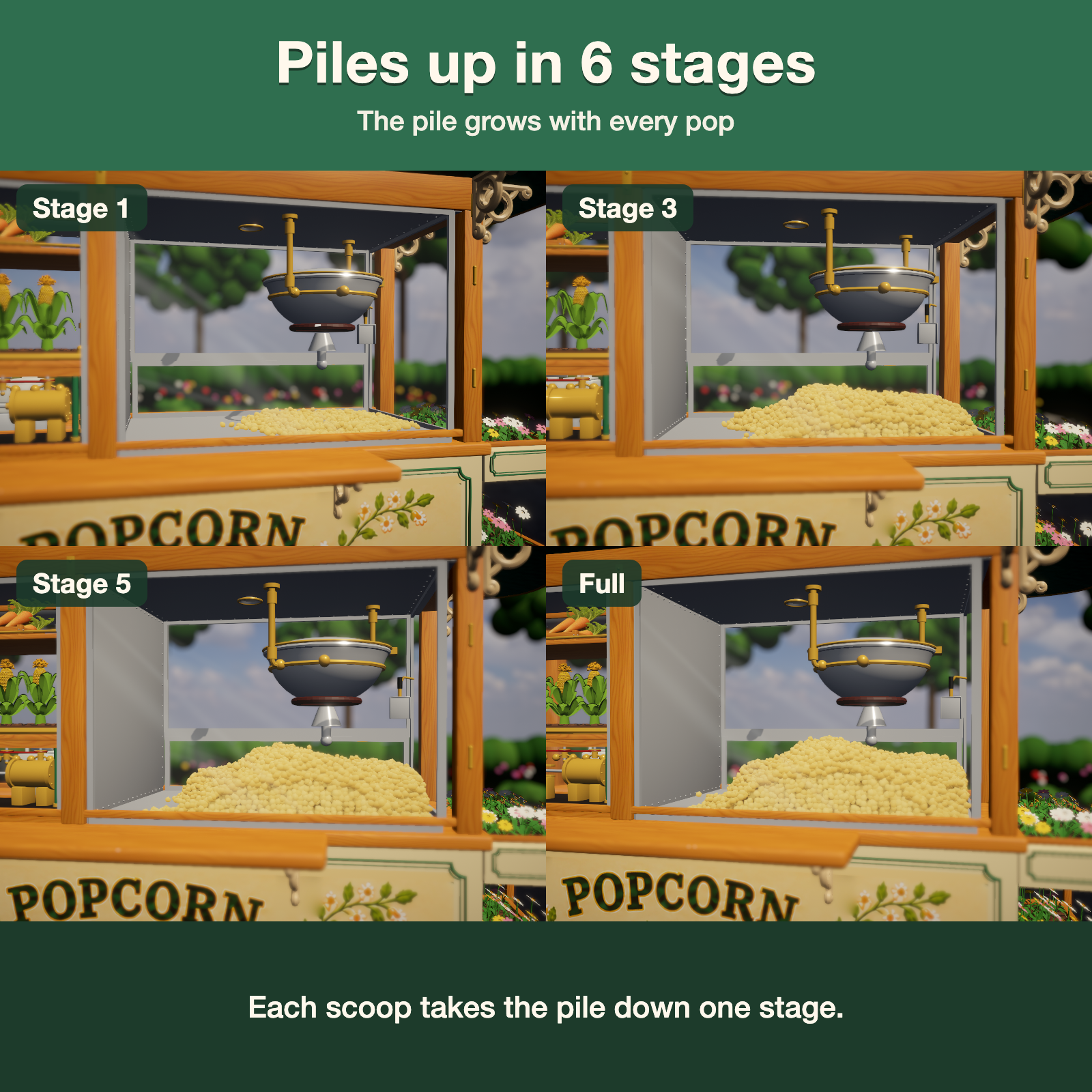
- Piles up in 6 stages — the pile grows with every pop; each scoop takes it down one stage
- Clockwork — only while it pops: the watering rabbit bows and waters the corn, the corn spins, and the flywheel and steam engine run, all driven from one shaft
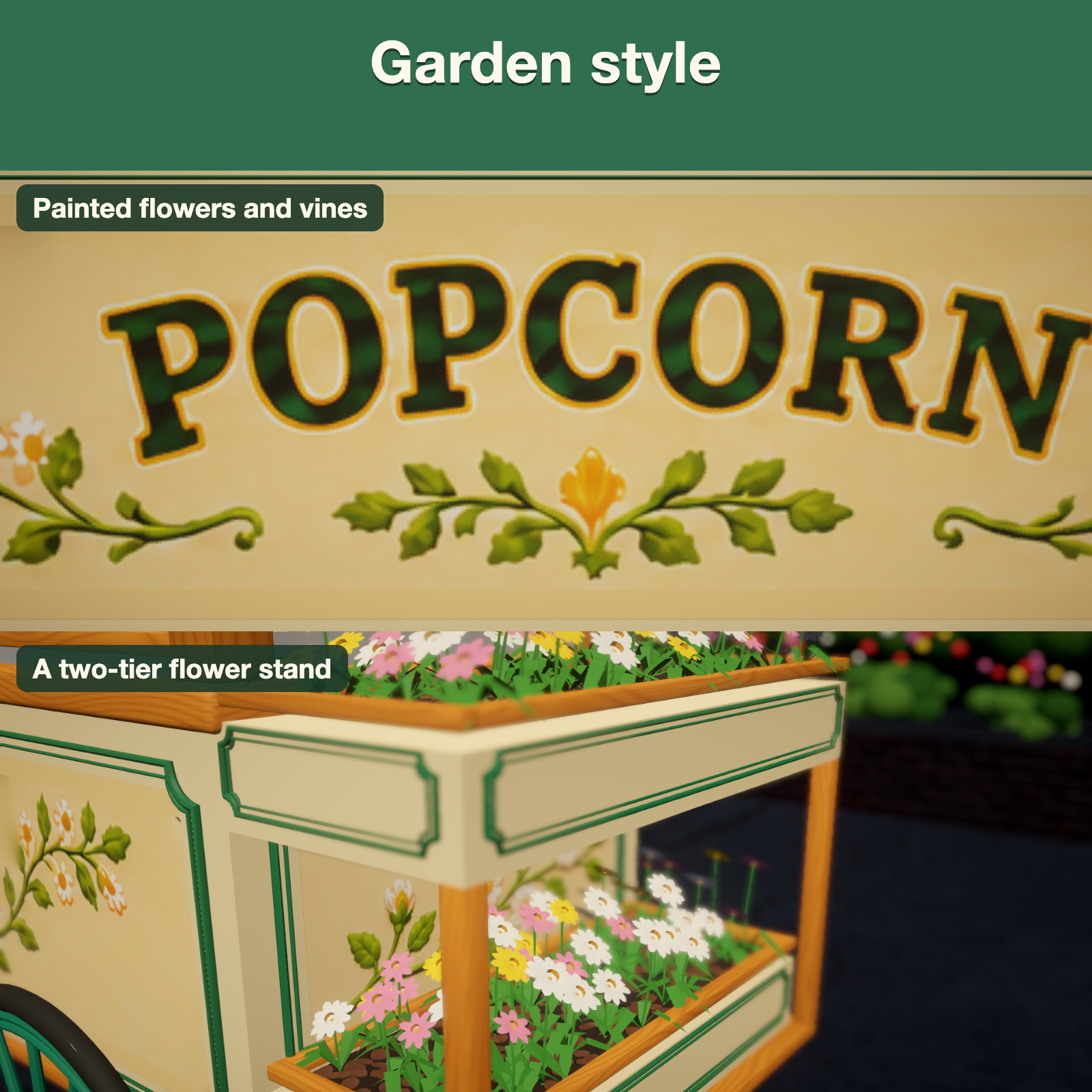
- Garden style — a cream body with painted flowers and vines, and a two-tier flower stand at the end
- Scoop — the scoop takes popcorn from the pile and fills the box on the table
- Hold the popcorn — walk up to the table or reach out, and the box is in your right hand (also from the menu; it is put away automatically after 5 minutes)
- Walk around holding it on desktop — the holding arm is layered on your walk, so you can keep moving
- Eat on desktop — "Eat (Desktop)" in the menu: your left hand picks a piece and brings it to your mouth
- Other players can join — they can press the buttons, and grab the box on the table (in VR)
- Stays in place — the wagon stays where you brought it out, even when you walk away
- Synced — people around you see the same thing and can operate it too
In VR mode, play with your hands
- Press the buttons — the START and SERVE buttons on the back of the wagon (the seller's side) react to your hand and light up (START green, SERVE orange)
- Take the box — reach for the box on the table and it moves to your right hand
- Pick and eat — put your left index finger into the box to pick a piece, then bring it to your mouth
After bringing the wagon out from the menu, everything from popping to eating can be done by hand.
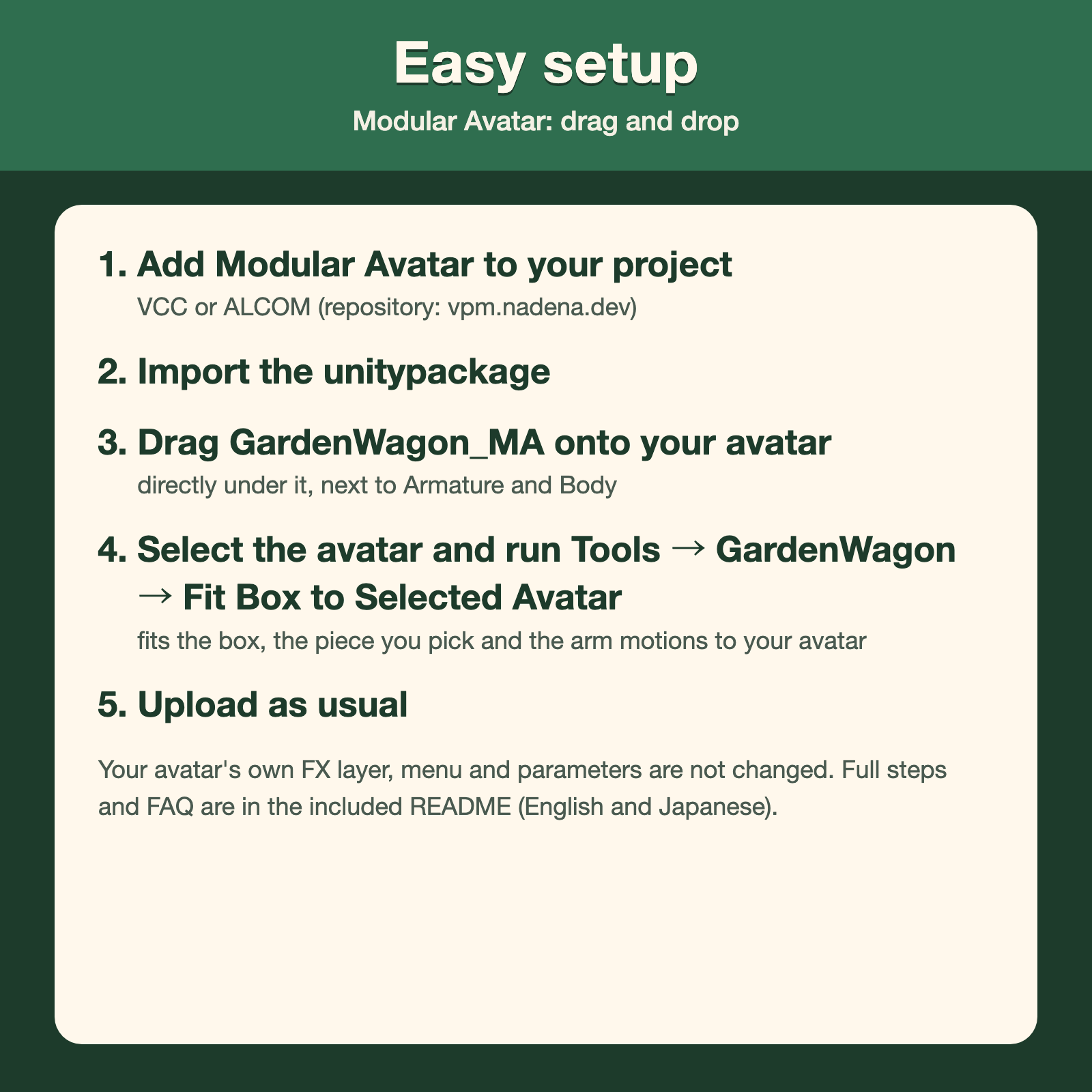
Easy setup (Modular Avatar)
- Add Modular Avatar to your project with VCC (or ALCOM)
- Import the unitypackage
- Drag GardenWagon_MA onto your avatar (directly under it)
- Select the avatar and run Tools → GardenWagon → Fit Box to Selected Avatar (fits the box, the piece you pick and the arm motions to your avatar)
- Upload
Your avatar's own FX layer, menu and parameters are not changed. Full steps are in the included README (English and Japanese).
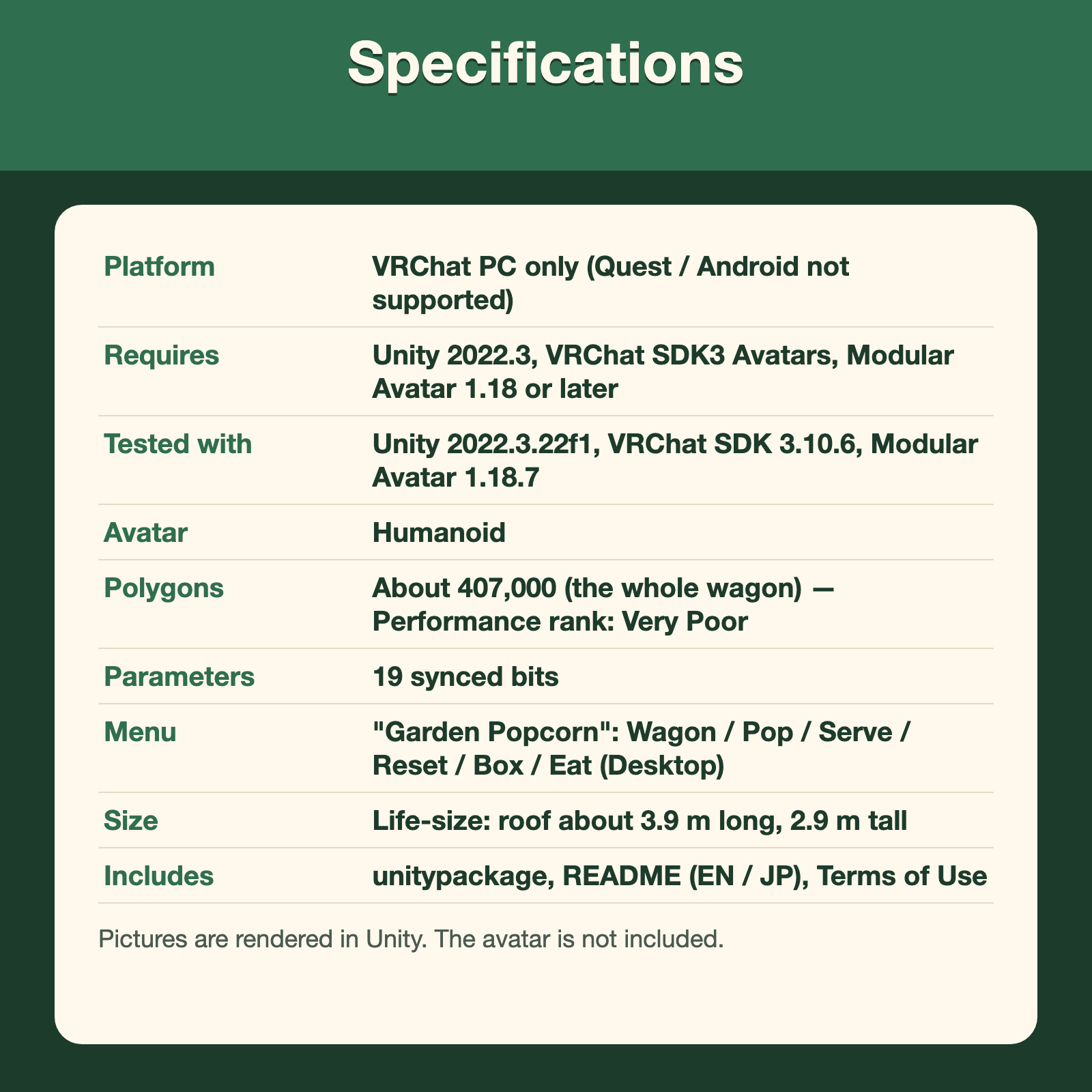
Specifications
- Platform: VRChat PC only (Quest / Android not supported)
- Requires: Unity 2022.3 / VRChat SDK3 Avatars / Modular Avatar 1.18 or later
- Tested with: Unity 2022.3.22f1, VRChat SDK 3.10.6, Modular Avatar 1.18.7
- Avatar: humanoid
- Polygons: about 407,000 (the whole wagon)
- Performance rank: Very Poor
- Parameters: 19 synced bits
- Menu: one "Garden Popcorn" submenu with 6 items (Wagon / Pop / Serve / Reset / Box / Eat (Desktop))
- Lights: 1 (the ceiling lamp, on only while it pops)
Notes
- Because of the polygon count, your avatar becomes Very Poor. People who hide Very Poor avatars will not see it.
- The wagon is life-size (the roof is about 3.9 m long; about 2.9 m tall to the dome on the roof).
- The pictures and the video were taken before a small update: the wagon in the package sits 15 cm lower than in them (the wheels are the same size).
- The box in the hand may be slightly off on some body shapes (a fitting menu is included).
- The popping sound is heard only by people whose settings allow avatar audio. People whose safety settings hide lights see the ceiling lamp glow only.
- When uploading, the Builder may show a "Very Poor" warning (always shown with this gimmick). It does not stop the upload.
- It may also show "This avatar uses Unity constraints...". This is about Unity constraints in your avatar itself (this gimmick uses none). "Auto Fix" replaces them with VRChat constraints; you can also upload without it.
- The avatar in the pictures and video is not included. Pictures and video are rendered in Unity.
Included files
- GardenWagon_MA_v1.0.unitypackage
- README_EN.txt / README_JP.txt (setup and FAQ, English and Japanese)
- Terms of Service .txt (Terms of Use, Japanese and English)
Terms of use (summary)
- Use it on your own VRChat avatars (any number of them).
- Modifying it for your own use is fine.
- Photos, videos and streams are free to use, including monetized ones and events. No credit needed.
- Redistribution, resale and sharing (including modified versions and avatar data containing it) are not allowed.
- Publishing it on a public avatar is not allowed.
- See the included "Terms of Service .txt" for the full terms (the Japanese version prevails).
Credits
- Avatar in the pictures: not included
- Sound effect: original, made by the author (no stock material)
- BGM of the promo video: "Haru no Yokan" by Music Atelier Amacha (甘茶の音楽工房)