상품 설명
이 상품에는 AI로 생성된 콘텐츠가 포함되어 있습니다.
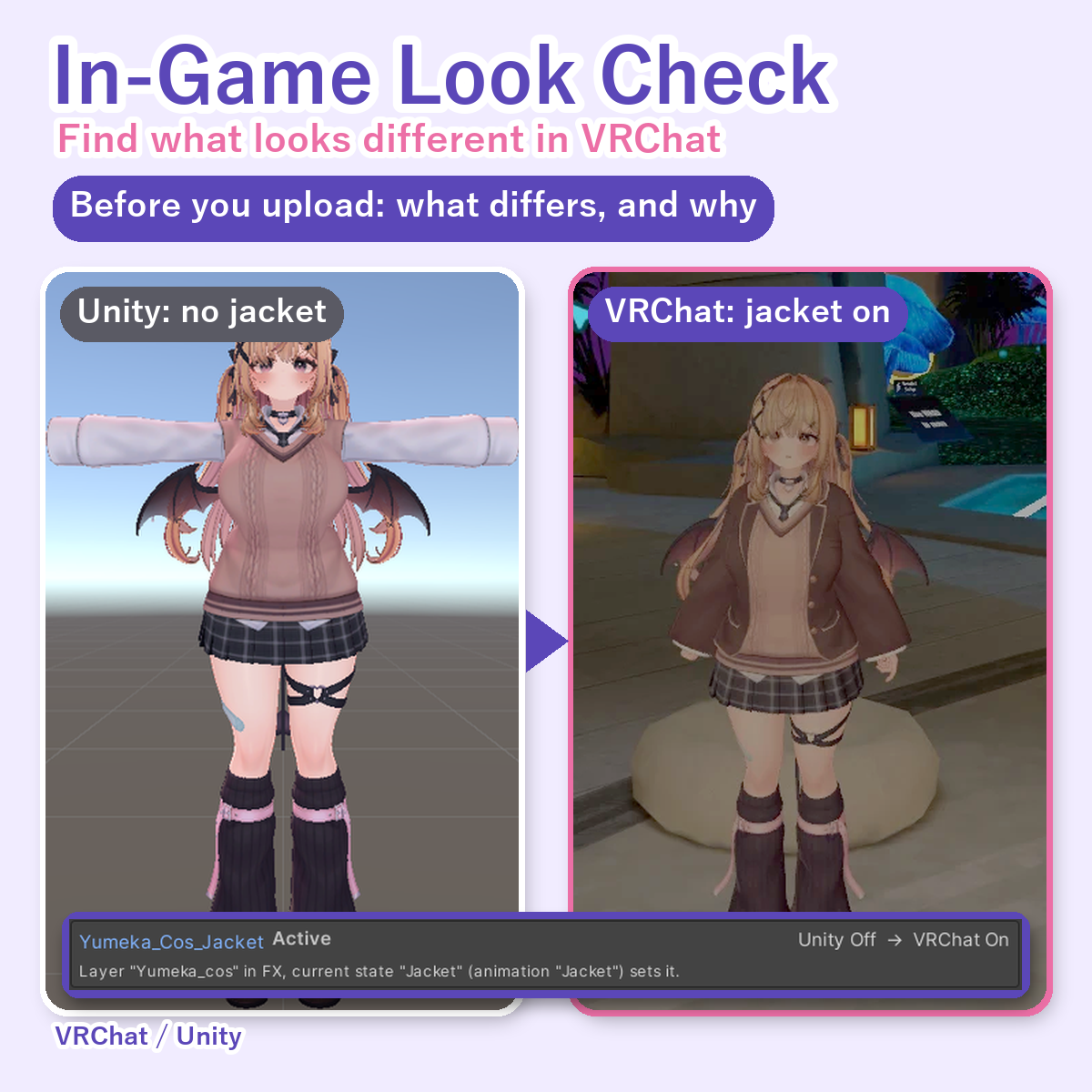
Hid an outfit in Unity, but it shows up in VRChat? Shrink blendshapes set, but the body is back to normal in game? In-Game Look Check is a Unity editor extension that compares how your avatar looks in the Unity scene with how it will look right after loading into VRChat, and lists what differs and why.
No avatar models are included (tool only).
How it works
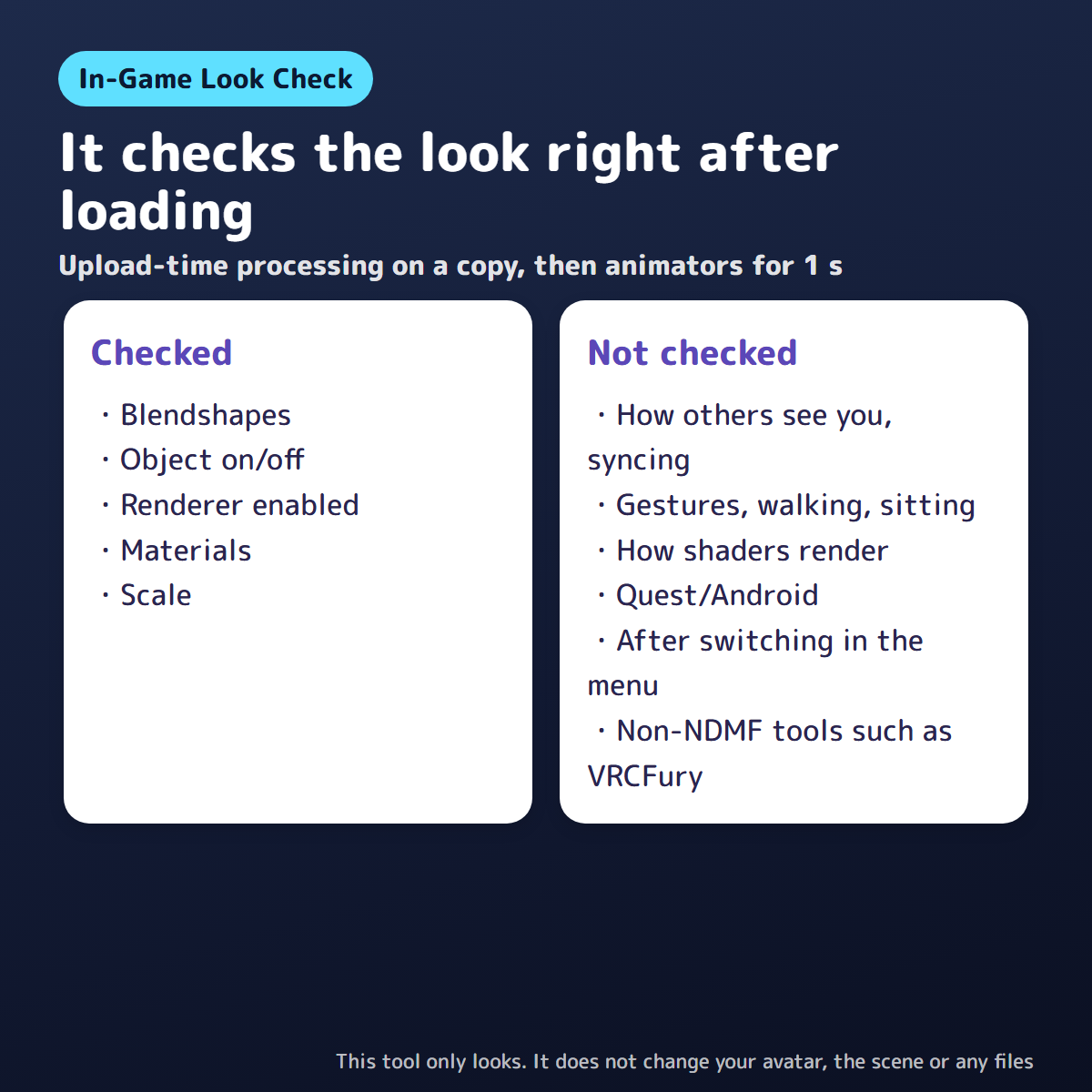
Press Check. The tool makes a copy of the avatar in a hidden preview scene, runs the upload-time processing on it (NDMF tools such as Modular Avatar and Avatar Optimizer), runs the animators (Playable Layers) for 1 second with the values VRChat uses right after loading, and compares the result with your scene. Checked: blendshapes, object on/off, renderer enabled, materials, scale.
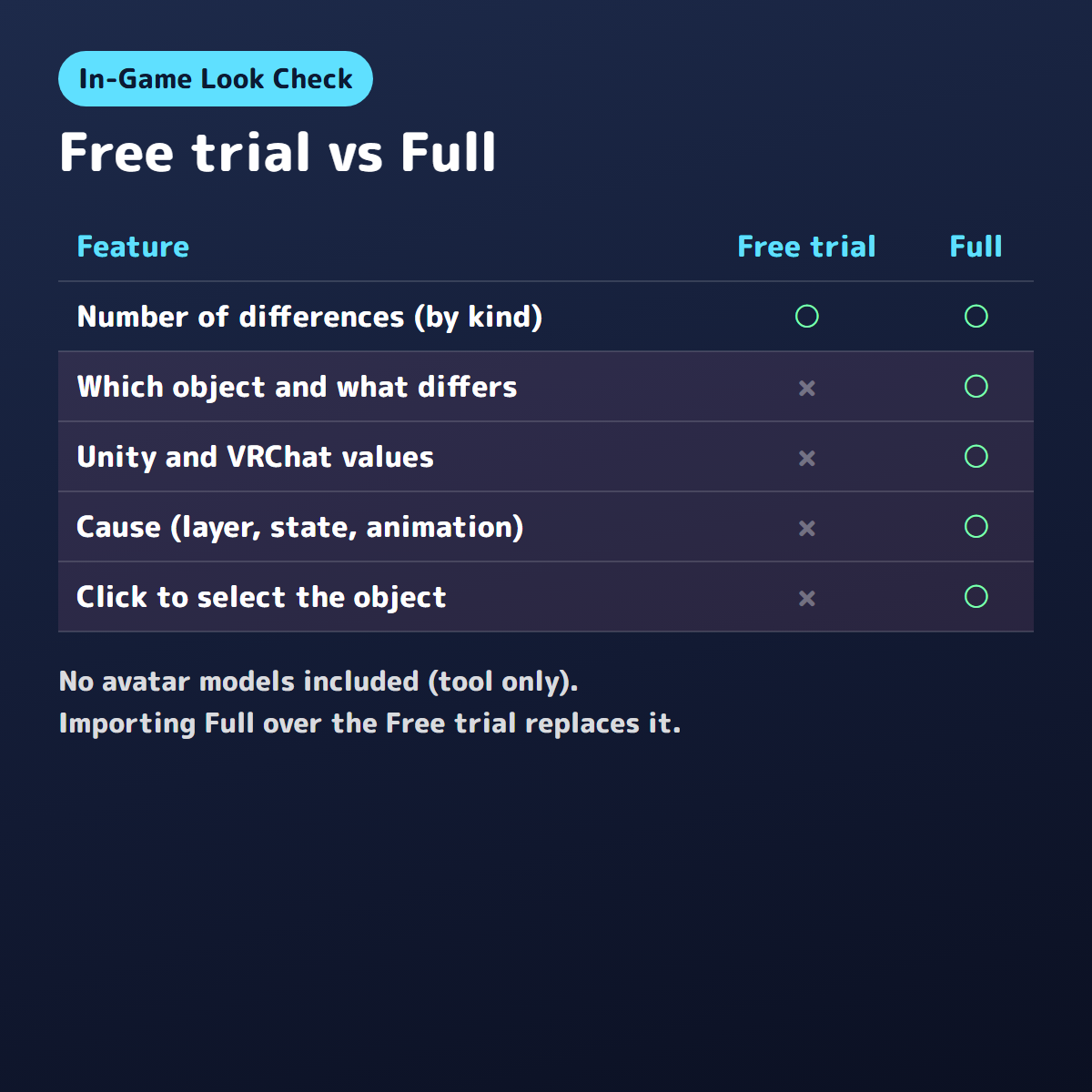
Free vs Full
- Free trial: how many differences there are, by kind.
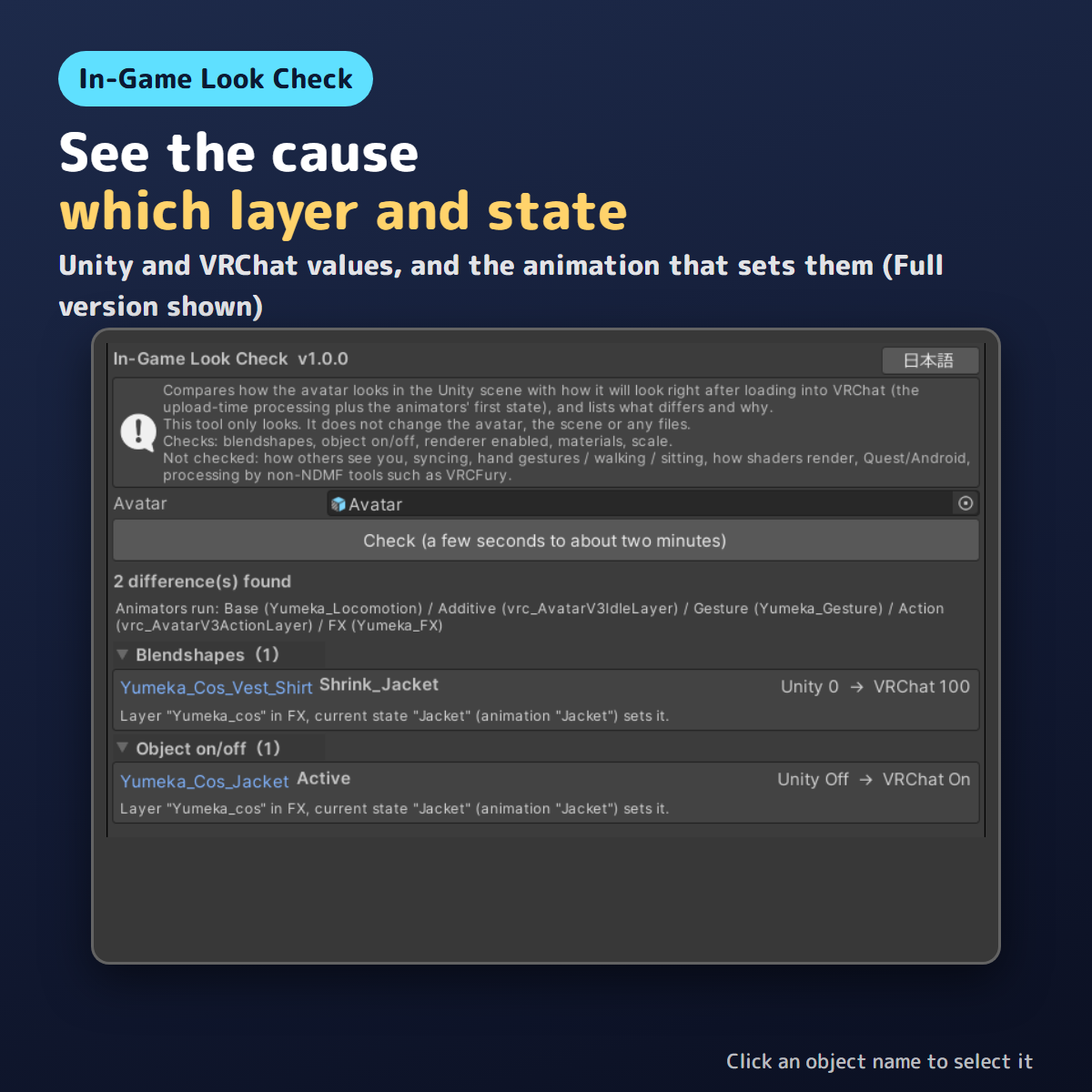
- Full: which object and value differs, the Unity and VRChat values, and the cause (which layer, state and animation sets it, whether Write Defaults is off on that state, or whether the upload-time processing changed it). Click an object name to select it.
Importing the Full version over the Free trial replaces it.
Tested before release
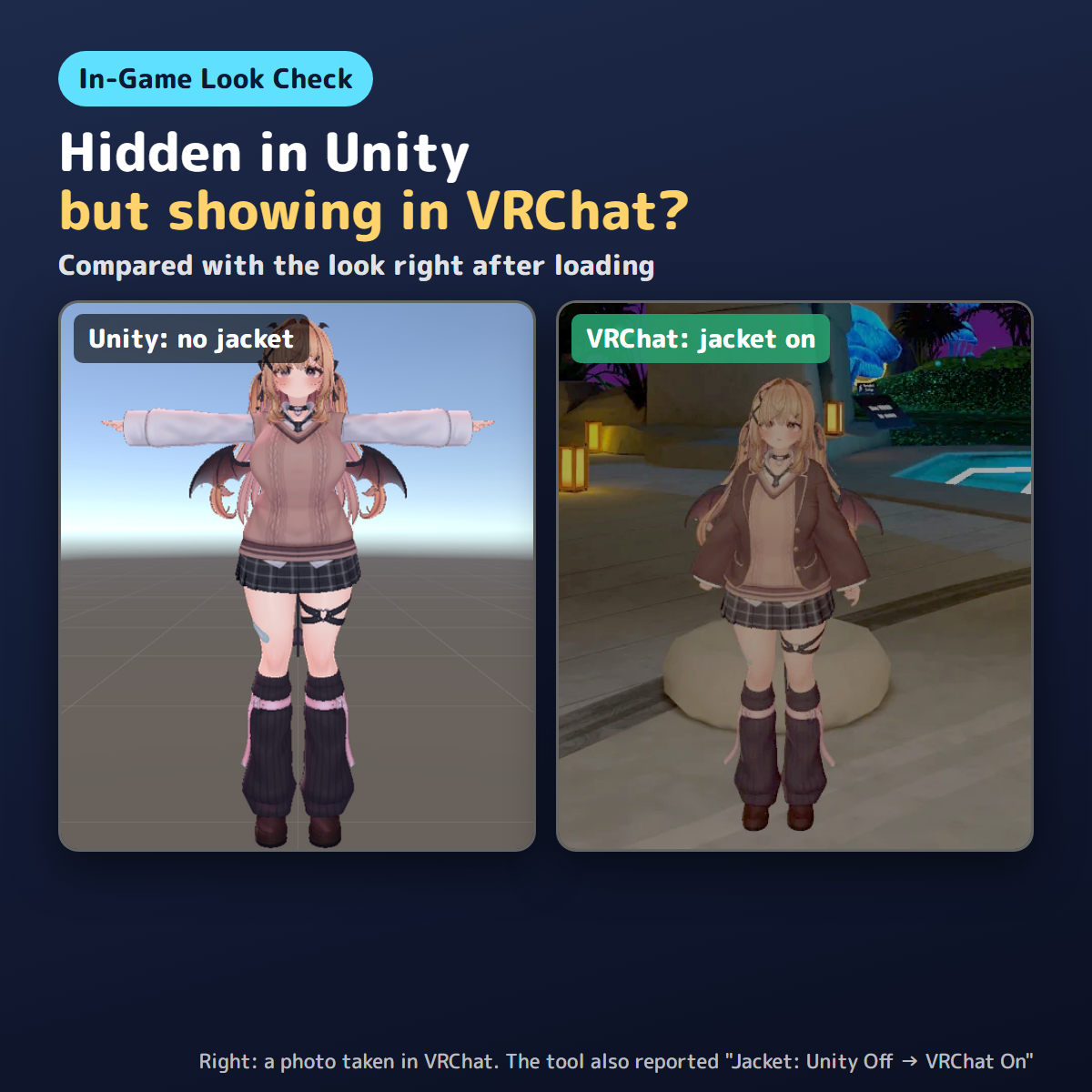
Made by Kotokoto Lab, an independent creator. Tested in VRChat: an avatar whose jacket is off in the scene was loaded into VRChat as is, and the jacket was on, matching the tool's result (Jacket: Unity Off → VRChat On). It runs to the end on 11 avatars (differences were found on 5 of them). On test avatars set up so that an animator changes a blendshape and an object on load, it reports the values and the layer, state and animation names. The avatar's values and the scene stay the same after checking.
Not checked
How others see you, syncing, saved-parameter differences; how the avatar looks while moving (gestures, walking, sitting); how shaders render, Quest/Android; how it looks after switching things in the VRChat menu; meshes merged or removed by the upload-time processing (the window shows how many); processing done at upload by non-NDMF tools such as VRCFury.
Notes
Avatars with many objects can take about two minutes (the longest in testing was about two minutes). Parameters set by VRChat use the values you would see on your own screen (IsLocal on, and so on); others use the Expression Parameters defaults. Some other tools' processing adds Undo records; this tool groups them into one named "In-Game Look Check", and undoing it changes nothing. Checking is not available while the Animation window is previewing or in Play mode.
Requirements
Unity 2022.3 (tested on 2022.3.22f1). VRChat SDK (Avatars). If NDMF is installed, the upload-time processing is included; without it, only the animators are checked.
How to install
1. Download the .unitypackage (Free trial or Full) and drag it into the Project window, then click Import.
2. Open Tools > In-Game Look Check, select your avatar in the Hierarchy and press Check. The button at the top right switches between Japanese and English.
Terms
OK for personal and commercial use. Do not redistribute or resell the tool. Use at your own risk.
Questions or bug reports: please send a message through the shop.
Developed with AI assistance (coding and testing).