상품 설명
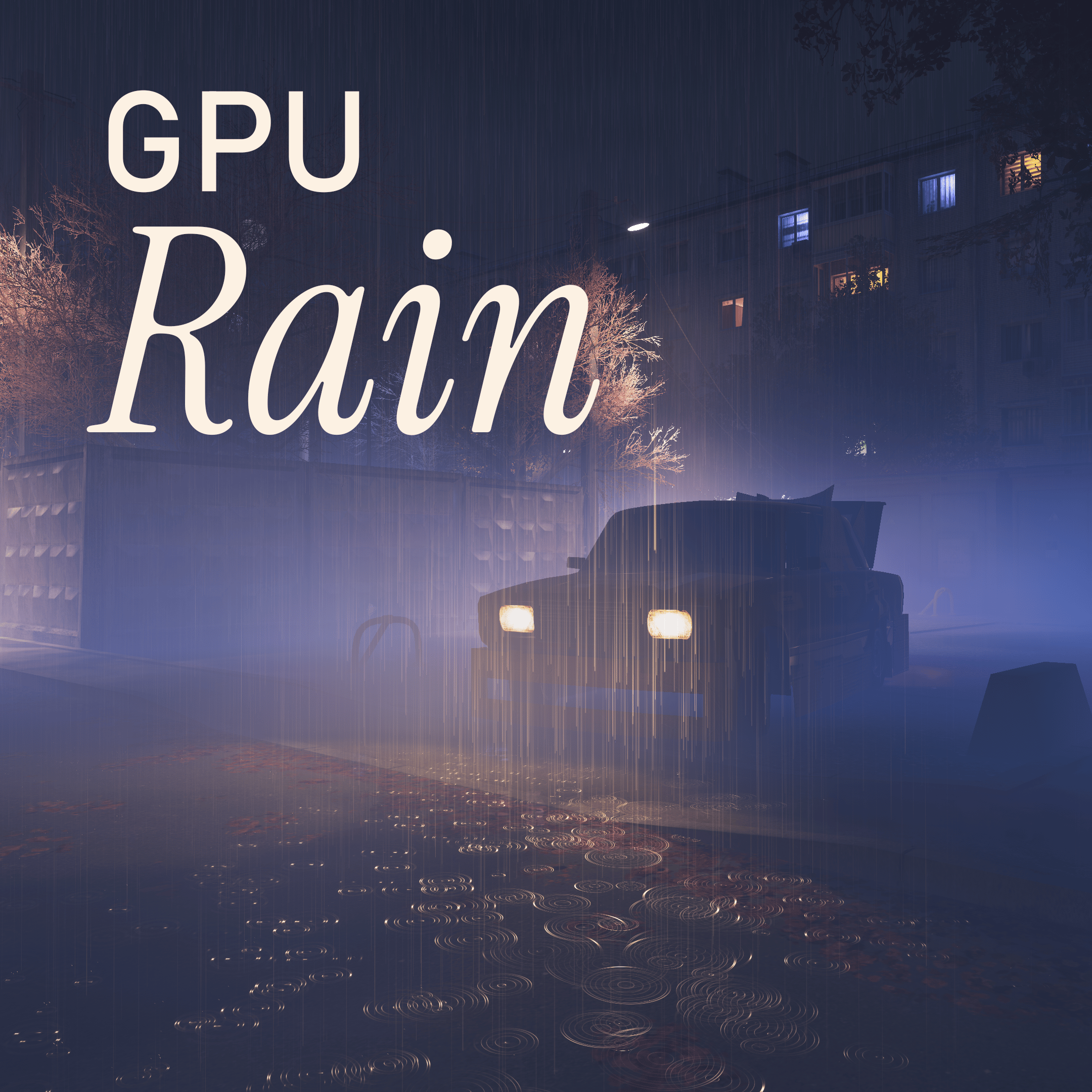
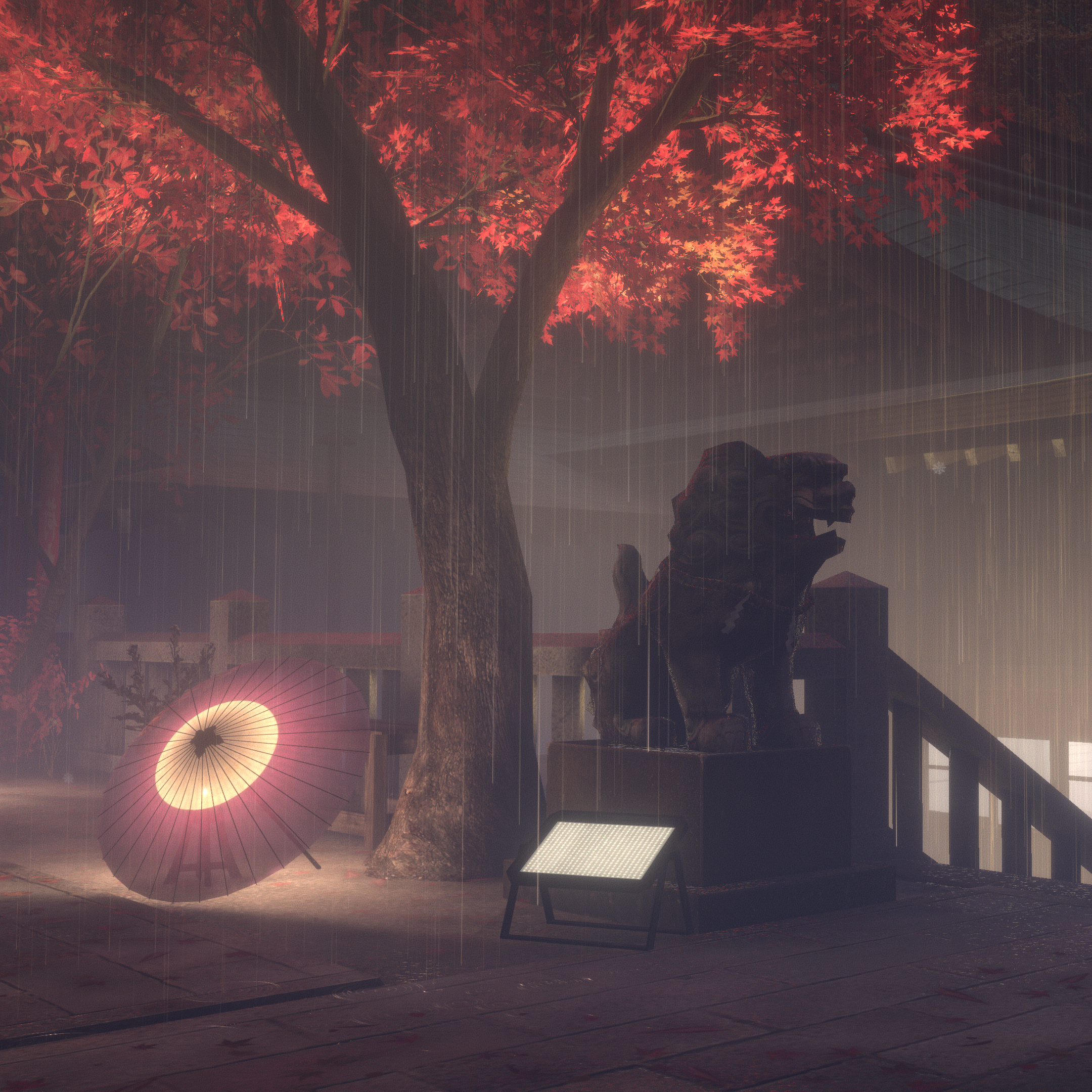
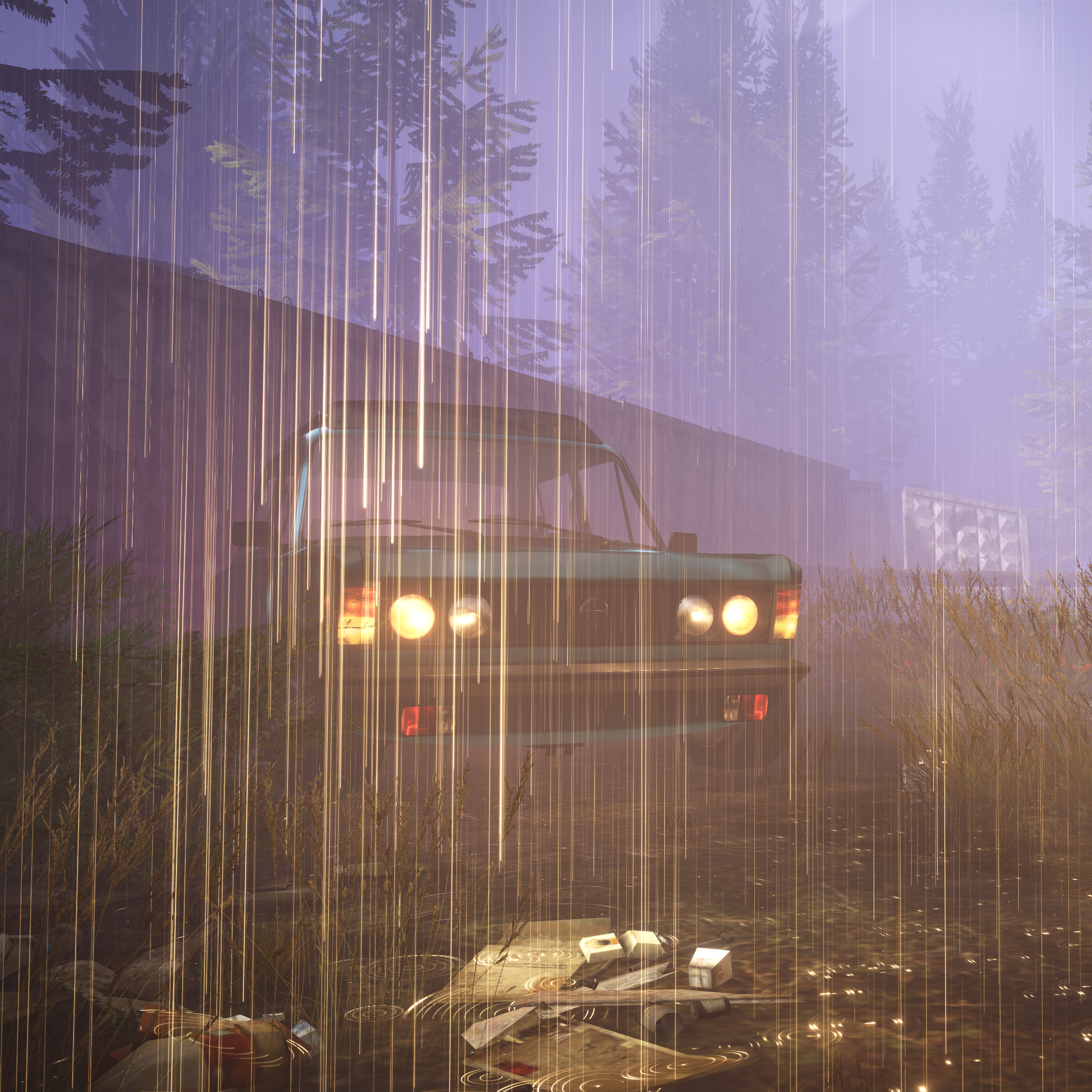
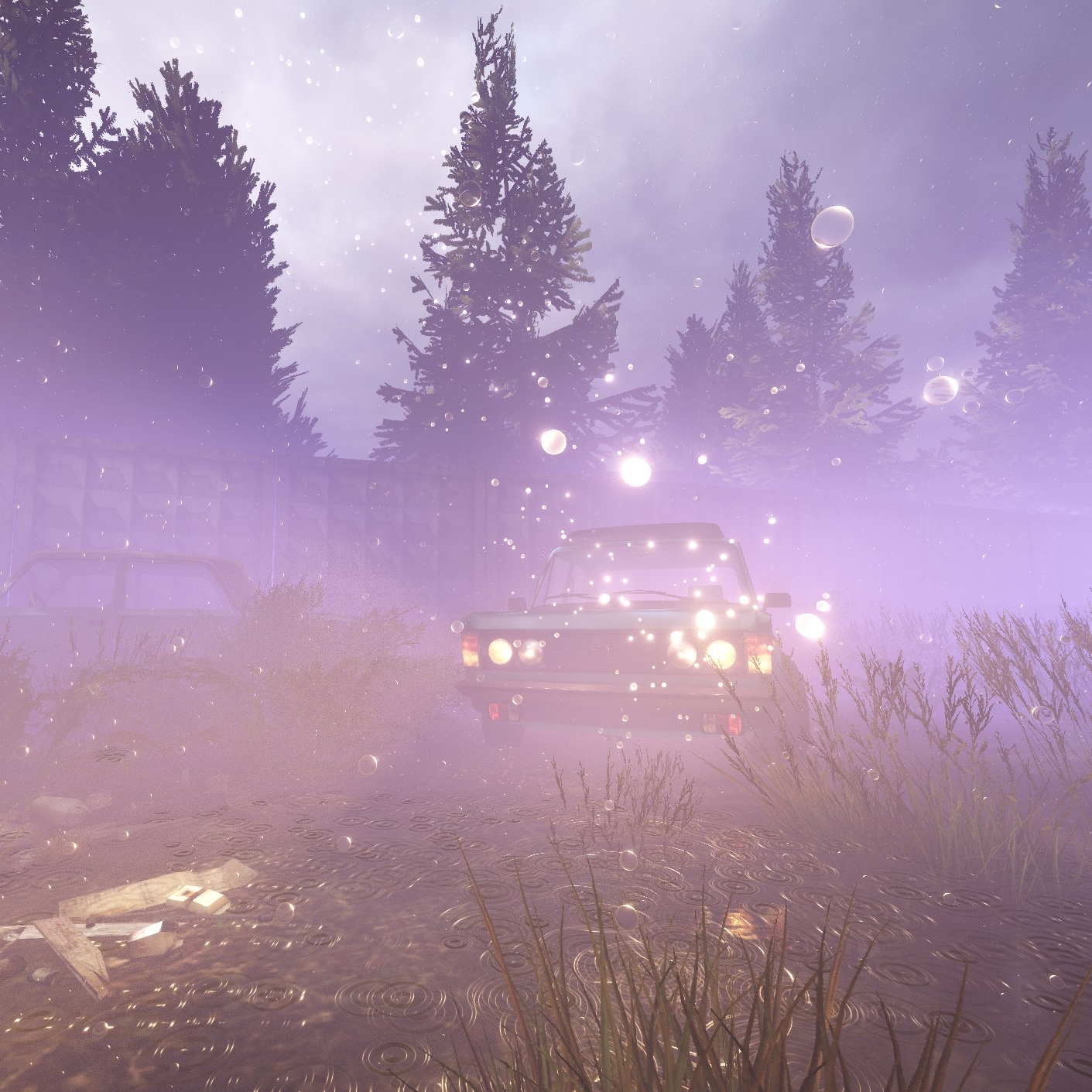
GPU Rain is a lightweight rain system built on GPU particles. It can render a really dense downpour, with procedural splashes and ripples right where the drops land. It supports VRC Light Volumes, refraction, adjustable quality settings, automatic weather control, and more!
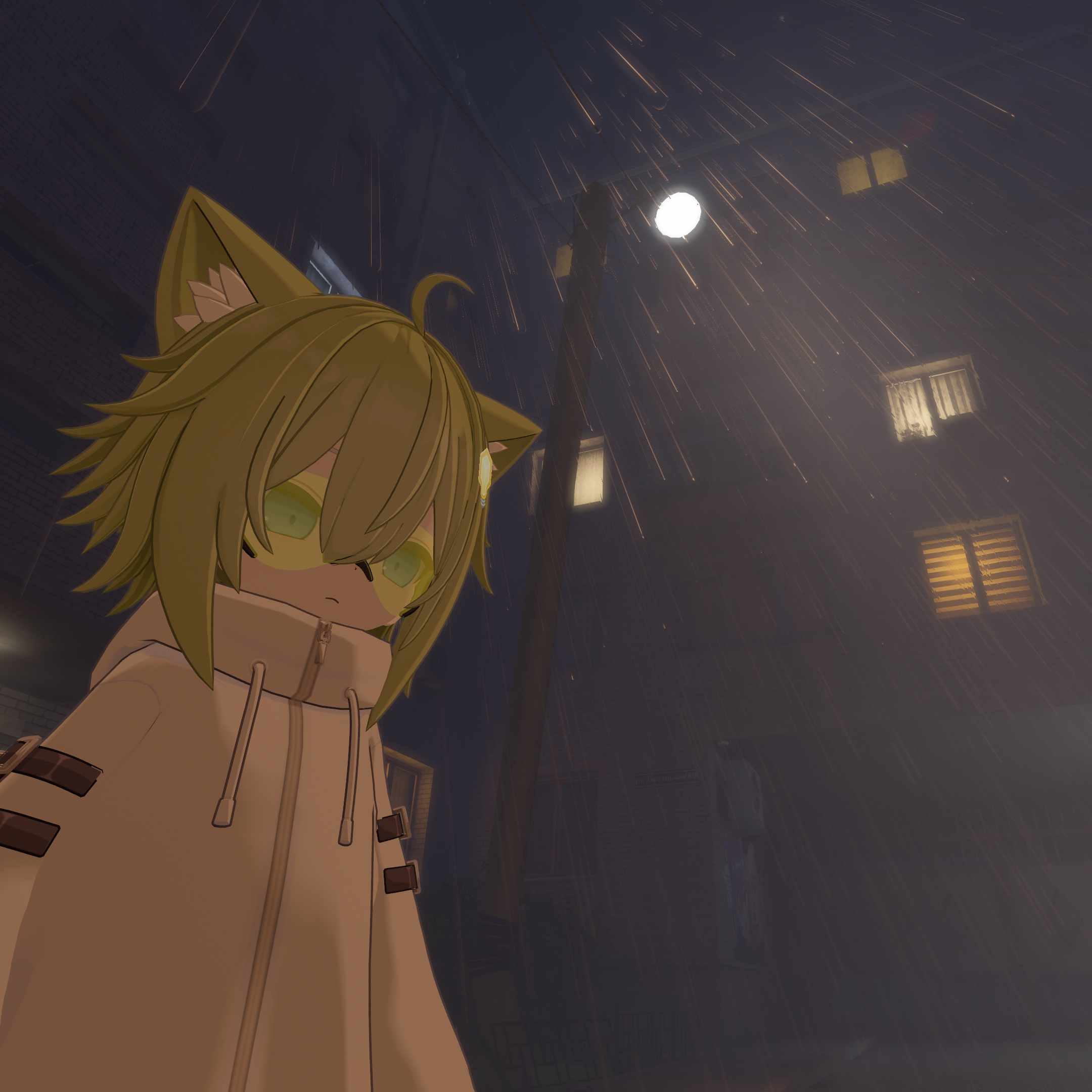
The world package works on PC, Quest, Android, and iOS. The avatar package is for Windows and includes prefabs for VRCFury and Modular Avatar.
Main features
- Dense rain with a low rendering cost
- Automatic surface collision
- Rain can hit players and moving objects
- Procedural splashes and ripples where drops land
- Adjustable quality settings
- VRC Light Volumes support
- Rain sounds that change with the intensity
- Automatic weather control
- You can even freeze the rain in midair!
How to install
- Import the world or avatar .unitypackage into Unity.
- In the Project window, open "Assets/RED_SIM/GPU Rain".
- For Worlds, drag and drop a rain prefab into your scene. For Avatars, open the "Avatars" folder and drag the VRCFury or Modular Avatar prefab directly under your avatar root.
How to use
Select the world prefab and open the "Rain Particle Manager" component in the Inspector to adjust the rain settings. Hover over the fields to see their tooltips. They explain a lot!
Rain Rendering
Set the rain density, draw distance, rendering layer, and the angle at which the rain falls. You can also enable "Manual Time" to freeze the rain at any moment!
Rain Collision
Choose the layers where you want drops to land and leave ripples. This works well for ground, water, and the flat surfaces of large objects.
No Ripples Rain Collision
Choose the layers that should stop the rain without producing ripples. Players, pickups, and small props are good examples. For moving objects, set "Update Mode" to "Every Frame" so the rain keeps up with them.
Visuals
Adjust the overall look of the rain and how it catches the light. Enable "Refraction" to make drops bend the view behind them. Both "Refraction" and "Separate Speculars" can have a noticeable performance cost, so use them where they make a visible difference. Quest uses a lighter version without refraction.
Rain Drops
Adjust the width, streak length, fall speed, and highlight brightness of the falling drops. Try making the streaks a little longer if you want the rain to look heavier at the same density.
Ripples
Adjust the rings that spread out where drops land. You can set how far they spread, how long they last, and how bright they look when they catch the light.
Splash Droplets
Adjust the small droplets that bounce up when rain hits a surface. You can change their size, how fast and how far apart they scatter, and how brightly they catch the light.
Sound
Blend rain sounds based on how heavy the rain is. From a light drizzle to a downpour, you can set the rain density and volume for each recording.
Setup
This section holds references to the rain materials and the camera that captures surfaces for collision. They're there for debugging, so you usually won't need to tweak anything here.
Excluders
Use GameObjects to define box-shaped areas where you want to keep the rain out, such as a room or doorway.
License
- The Standard License covers one person. You can use and modify the asset in VRChat Worlds and Avatars, including monetized or donation-supported projects, and in non-commercial projects outside VRChat.
- For a commissioned VRChat World or Avatar, the creator using the asset and the client each need their own copy.
- For commercial projects outside VRChat, each person working directly with the asset needs a Commercial License.
- You can publish compiled builds that include the asset or deliver them to clients. Do not share, sell, upload, or redistribute the asset files, including modified copies or files bundled in an editable Unity project or package.
The bundled VRC Light Volumes shader library uses the MIT License. See the included License_EN.md for the full terms.